Posts

SharePoint Workflow Errors: Descriptions, resolutions and Workarounds

The following table lists some of the common errors that can occur in a Workflow developed using SharePoint Designer. A short description of some of the likely causes for each error are also provided. More detailed examples of the following scenarios where an error may occur in a SharePoint Designer workflow are also provided later in this post: Exiting / Breaking a Looping Workflow using Workflow Errors Workflow Permissions Changing the name of a Document in a Document Library If you come across a workflow error which is not explained below, please post details in a comment to this post. I will ammend the table and information below to include any additional errors, descriptions and possible causes to build a comprehensive list of workflow errors and resolutions when developing using SharePoint Designer. Workflow Error Summary Table Status / Event Type Description Outcome Possible Cause(s) Error Error updating a list item List Item Not Found No item in the list matching the critera u...

How to configure a workflow to start at specific time, then loop / repeat periodically (Daily, Weekly)

Image
The following method can be used to start a workflow at a specific time, then repeat periodically (each day). Periodic Workflow Processing (send daily email notification or reminder) A useful implementation of this technique allows you to configure workflows to run as background tasks at a specific time instead of being triggered by a user manually, or after creating or modifying a list item. This allows processing of data from SharePoint to take place during times when the SharePoint environment is not being used as well as performing tasks that take a long time to complete. For example, this method can be used to configure a looping timer workflow to run at COB each day (5:00pm) to perform calculations and processing on a list item before emailing a reminder, or details to a user associated with the list item or document. When initiated for the first time, the workflow waits until the specified time (5:00PM) before executing workflow actions. After the workflow is complete, a seconda...

SharePoint Designer: Get account details of the user who initiated the workflow using OOB Workflow Activities

Get account name of the user who initiated / triggered a workflow using OOB SharePoint Designer Activities: The ability to access the account details of the user who started a workflow in Sharepoint is not supported when developing workflow using SharePoint designer and OOB workflow activities. The User data type allows selection of the User who created the item, but not the user who initiated the workflow. Using the Modified By field will return the user who made the most recent changes to the document/list item or meta data, but may not be the user who initiated the workflow. For example, if a workflow is used to set the approval status of a list item or document with content approval enabled is initiated, the user who published a major version of the documnent (submit for approval) will be the user who initiated the workflow regardless of who made the most recent changes to the document. A number of solutions relating to this issue / limitation are available, including a workarou...

SharePoint Looping Workflow - How to: Loop through and process all items in a list

Image
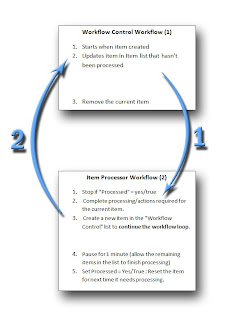
Objective To use SharePoint workflows to loop through all items in a list to perform calculations, process and update metadata values, or concatenate the value of a specific column in all list items into a single string. Background The OOB workflow actions provided by SharePoint don't allow a loop to be configured explicitly. Instead, a number of workflows can work together to create a looping affect. Another limitation of Workflows in SharePoint using SharePoint Designer (SPD) is the inability to simply test if the user who initiated the workflow is a member of a SharePoint group, or to test if the value of a field in the item which initiated the workflow is equal to the value of a specific field from any item in a separate list. For example, the OOB Approval Workflow requires that a user who is an Approver of changes to approve their own changes each time a modification is made. In many cases, Approvers are also the users who make many of the changes that require content approval...

SharePoint Forums, Blogs and Online Communities

SharePoint Forums The following page provides a comprehensive list of websites hosting popular forums relating to SharePoint. Learn how to customise, develop and administer SharePoint environments from industry experts by browsing through existing threads, or by posting a new thread if you have a question which hasn't been answered in one of the forums. All of the forums listed are free to join and contribute. Forums relate to WSS, MOSS 2007 and SharePoint 2010, and include the official Microsoft product and Technologies and other forums such as the SharePoint Development & Programming, SharePoint Setup and Administration, SharePoint Design and customisation. SharePoint Blogs The SharePoint Blogs listed on the page are predominantly SharePoint MVPs, with years of experience, and many useful articles, tips and tutorials to help when customising, developing and administering SharePoint. SharePoint Groups There are many groups (newsgroups) available that contain information, an...

SharePoint, Web Programming & SEO Resources

Web-Resource.org - SharePoint, Web Programming & SEO Resources Web-resource.org provide a range of resources from around the web for Web Development & Programming, SharePoint & InfoPath Development and Search Engine Optimisation. Resources have been hand selected by the team at Web-Resource.org, and suggested by users. SharePoint & InfoPath Resources A range of tools and resources are provided by Web-Resource.org for Administering, Designing, Customising and Developing a SharePoint environment. Resources include a range of articles with tips, how to's, tutorials, third party utilities for administering and developing SharePoint. Tutorials are also available to help with InfoPath form development and integration with SharePoint. SharePoint Design & Customisation resources include tutorials for creating and customising Data View Web Parts to display data from SharePoint lists which is formatted based on metadata values for each list item. This include...

Where is SharePoint web.config?

Image
There is a separate web.config file for each Web Application / IIS Website which is running an instance of SharePoint. For example, if Sharepoint, Central Admin and the MySite host are all running as separate Web applications (different Application pools) on separate IIS sites, there will be a web.config file in the root of the virtual directory for each application. There is also a separate web.config file which contains configuration details for the "_layouts", "_catalogs", etc directories of SharePoint sites. You should not make changes to the web.config file in a production environment, or while in production. Back up your entire SharePoint environment, including all databases prior to commencing any major troubleshooting or configuration changes. You should attempt and test any modifications to the web.config file in a non-production environment which is configured the same as the live environment. Once you are confident the the changes apply the necessa...

SharePoint Web.Config: How to Show Full Errors

Enable display of error details and stack trace when an error occurs Replace the following error messages with a more meaningful description of the cause of the error by disabling custom errors and enabling the track trace to be displayed as well. An unexpected error has occurred An error occurred during the processing of... To display full errors and the stack trace of the error, you need to modify the web.config file for the Web Application which SharePoint is running on. There are a number of web.config files required to configure various components of SharePoint. For help finding the correct web.config file, see Where is SharePoint web.config? See notes below for more information about modifying the web.config file to display errors. Enable Custom Errors: Set the customErrors mode to "Off" Find: <system.web> ... <customErrors mode="On" /> Change To: <system.web> ... <customErrors mode="Off" /> Enable the ...

How to wait for a change in any list, wait for multiple field changes in the current item (SharePoint Workflow)

This article describes techniques which can be used when developing workflows in SharePoint using SharePoint Designer. They allow a workflow to wait for a field change in an item in another list, or to wait for multiple field changes in the current item before continuing. This can be achieved by configuring an On Change workflow to stop if the required criteria is not met, instead of using "Wait for field Change in the current item" actions in a Parallel fashion which limits functionality. The first step in the workflow can contain as many conditions as required, using the standard tests against fields in the current item, or a field in an item in another list on the sameSharePoint site. If the conditions are not yet met, the workflow will stop. A new instance of the workflow will initiate every time data in an item is added/updated, and will continue only when all of the required criteria is satisfied. The action for all conditions in the first step will be to stop theworkfl...

(Looping) Timer Workflows Using SharePoint

Timer Workflows It is often a requirement of a Workflow in SharePoint to monitor and respond to various dates such as a start or due date. If the timer is not the main function of a Workflow, it can be created as a separate Workflow to that both can run in parallel with full functionality. Looping Timer Workflows To have a looping timer workflow (eg. send a daily notification/reminder until a specific condition is met), the workflow must start when an item in the list is changed, and when it is created depending on the scenario. At the start of the workflow, test if the required condition has been met, and stop the workflow if it has. If the condition has not yet been satisfied, the workflow can continue. As the workflow will initiate after an item is modified, it is possible for multiple instances of the same workflow to be initiated. To prevent this, a custom (boolean) field is added to the list which is used to determine if an instance of the workflow is already running. When the w...

InfoPath Error - Updating Content Type Failed When Publishing to SharePoint

When Publishing an InfoPath Form to a SharePoint site Content Type, the process may fail when trying to Update the Site Content Type if there are a large number of fields being promoted to SharePoint columns/fields in the Content Type with an "Updating Site content Type Failed" message. One solution for this is to create a separate list with a lookup column/field back to the list which uses the Content Type created by InfoPath. The fields which are removed from the Content Type can be added to the separate list instead. When the InfoPath Form is submitted, rules can be configured to create or update an item in the separate list which corresponds to the form being submitted, with the additional data. How to Solve : 1. Make a full backup the InfoPath Form Template and the SharePoint Site (Content Types, Lists, etc.) 2. Choose which fields to add to the separate list instead of promoting/submitting with the form data. 3. Remove the fields from the list of promoted fields ( ...

InfoPath Tip - Show text field if user selects other

Image
InfoPath Basics - Display text box if user selects Other using conditional formatting Promote two fields to a single SharePoint or Database column/field. This article demonstrates how to configure an InfoPath form to display an optional text box for the user to enter a custom value if not available from the list of options. A separate field in the main data source of the InfoPath form will be used to store the value of the selected option, or the custom value if supplied by the user. Rules are set up to set the value of the separate field in the data source when an option is selected or when a custom value is entered into the text box. When submitting the form, the text field with either the value selected, or the optional text input entered if the user selects other can be promoted to a single SharePoint column, or database table instead of promoting both the option field and the text field containing the "Other" value if selected. Conditional formatting is also used t...