Posts

Showing posts with the label List Views

Set SharePoint List Form Web Part field values using JavaScript when Creating New Item

How to set values of form fields generated by the SharePoint List Form Web Part when adding a new item to the list using JavaScript. Using a custom metadata field in a SharePoint list to set categorisation & filter criteria that is later used by List and Data View Web Parts to arrange & filter content for specific audiences.  Depending on the audience that a user is in, I wish to set alternate default values for specific fields rendered by the List Form Web Part. In most cases, a custom multiple choice field in the list will be set to a value which corresponds to the current user’s audience, but will sometimes need to be manually adjusted.  To improve the experience for end users, the appropriate checkbox option from the multiple choice field that corresponds to the current user’s audience will be selected when the form loads, and the default value for the field un-checked if required. The custom field is used in multiple content types across the primary site col...

XSLT String Manipulation - Remove spaces in Field Value for use in URL

XSLT function sets the value of a parameter to the value of the required field, after processing to remove spaces. The parameter is then used to set part of url in the href attribute of an <a> tag. <xsl:template name="dvt_1.groupheader0"> <xsl:param name="fieldtitle" /> <xsl:param name="fieldname" /> <xsl:param name="fieldvalue" /> ....... other template params 1. Add a parameter to store <xsl:param name="stringNoSpaces" > <xsl:call-template name="stringreplace"> <xsl:with-param name="stringvalue" select="@Field-XPath" /> <xsl:with-param name="from" select="string(' ')" /> </xsl:call-template> </xsl:param> ....... main template code <a href="/FirstURLComponent/{$stringNoSpaces}"><xsl:value-of select="$fieldvalue" /></a> ....... remaining template code </xsl:...

Solved: Can't Group By Choice Column in SharePoint List View

By Default, items in a SharePoint list can't be grouped by a Choice field if it allows multiple selections (checkbox). To be able to group by the value of a Choice field in a SharePoint list or library which allows multiple selections, you need to ensure that the Choice field/column is set as Radio Buttons or a Drop Down Menu. Both of these options only allow a single selection of the available choices, which is required to allow grouping by the column/field using Standard SharePoint List views. To group by a Choice field which allows multiple selections (checkboxes), convert the Web Part to a Data View using SharePoint Designer, then apply grouping doing the following: 1. From the "Common Data View Tasks" menu for the Data View Web Part, select "Sort and Group:" from the options to open the Sort and Group Dialog, add any field into the Sort Order section to activate the "Edit Sort Expression..." button. Click the "Edit Sort Expression..." b...

InfoPath Performance for SharePoint Data Connections

Image
When an InfoPath form has a large number of SharePoint data connections, the time it takes to open a the form will increase resulting in slow loading time when the form is being opened. To reduce the loading time of the InfoPath form, SharePoint list/library Views with filter criteria can be used to minimise the number of results, while ensuring that all required items that are displayed in the result set. [edit] InfoPath Data Connections to a SharePoint list retrieve items from the list's default view. This can lead to the data connection not returning the required result from the SharePoint list if items are filtered or limited. See InfoPath data connection not returning all results from a SharePoint list for details. For instructions in how to create and set up InfoPath data connections to retrieve data from SharePoint lists, see Using Secondary InfoPath Data Connections to retrieve data from a SharePoint List or Library . The challenge when creating views to ignore irrelev...

Using Secondary InfoPath Data Connections to retrieve data from a SharePoint List or Library

Image
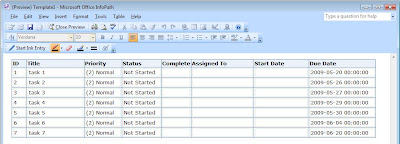
The following demonstrates how to use InfoPath data connections to connect to and retrieve SharePoint list contents (item metadata) for use in the form. This can be useful when InfoPath forms are used as a workflow component or interface, or if the form is being submitted to a library on a SharePoint site. The example creates a secondary data connection that connects to a standard SharePoint task list. Some sample items have been added to the task list. Article Specifications/Requirements SharePoint (MOSS 2007) OOB Task List Written for InfoPath 2007, but can also be applied to InfoPath 2003 Process Create the blank form and set up the data connection: From Microsoft InfoPath, design a new blank form template. From the "Tools" menu, select "Data Connections". Click the "Add"button to add a new data connection to the form which will be a secondary data connection (not the main submit) Select "Create new connection to", and "Receive Data...

Data View conditional formatting using SharePoint Designer

Image
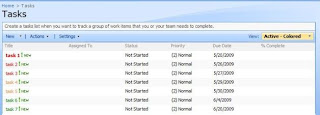
This article demonstrates how to use SharePoint Designer 2007 conditional formatting to format items in a SharePoint (MOSS 2007) list based on item metadata. The example uses a standard SharePoint task list and formats tasks based on the due date. The end result is a list view sorted by due date with item text or background coloured to represent the number of days until the due date. The Process In this example I have started with a standard task list and have created a few sample items for testing / demonstration. From the task list, create a new view, starting from the default “Active Items” view (filtered to only display incomplete tasks). The view created in the example is called “Active – Coloured” Open the view using SharePoint Designer. Right click on the List View Web Part and select “Convert to XSL Data View”. This will automatically convert settings for the current view into data view parameters. Once the Web Part has been converted into a Data View...

InfoPath data connection not returning all results from a SharePoint list

Problem I have a data connection retrieving ID values from a library’s items to determine the maximum ID of items currently in the list. Certain metadata results in items not appearing in the default view. When InfoPath queries the data connection, only IDs of items which display in the default view are retrieved. This became a problem as the maximum ID found by InfoPath was 240, when documents existed in the library with an ID of 246. To complicate the matter even further, a number of documents had been added and removed from the library making the next available ID 268. I needed InfoPath data connection to give me the maximum ID of current documents (246). Cause Data connections in InfoPath return the same results as the default view for the specified SharePoint list. Solution 1: Create a view which returns all items in a list / library (no filter criteria) – Set this view as default Will work well for lists libraries with less than 2000 items, and when a custom view is not ...

Split List View web part labels (javascript)

The following is a javascript function created to split long questions / column titles on a SharePoint survey or list when editing ( EditForm.aspx / DispForm.aspx ). I had a survey with questions containing hundreds of characters. When the EditForm.aspx / DispForm.aspx pages render the survey for completion, the questions are wrapped in < nobr > tags, which results in the page's width being much larger than the browser, regardless of resolution. The function takes all < nobr > elements and replaces those which match required criteria. Each question / column in the survey starts with a number, which is followed by the question ( "1. ..." "2. ..." etc.). The function runs through a series of tests to determine the currrent question. If the beginning of the line matches the required question number, contents of the element is replaced to include a break ( < br >) tag to split the line. Possible improvements: Split the question string after a s...

Ignore folder structure in Document Library - Use Metadata to filter, group and sort results

Image
The following screenshot (MOSS 2007) shows the setting that is required when creating a view to display all documents in the library, ignoring the directory structure. This page can be accessed from any document library or list by selecting "Modify this View" or "Create View" from the View dropdown menu. Using this feature can increase relevance of the items/results displayed from the library as sorting and grouping can be performed using metadata without displaying folders. When using this method, the directory structure is preserved. Posted as a solution to http://www.sharepointblogs.com/forums/p/20623/44064.aspx#44064 on 10/03/09