Posts

Showing posts from July, 2009

InfoPath - CAML Date Time format in when submitting to a SharePoint list via a Web Service

I noticed that when trying to update a SharePoint list item using a CAML query from an InfoPath form, if the date/time format was not correct the field in the SharePoint list item would not be updated. Any updates in the CAML query after an element with an invalid date/time format were also not applied. The Date Time format in a CAML query must comply with the ISO 8601 standard. This means that to update the time component of a Date/Time field in a SHarePoint list, the time and date must be formatted according to the ISO 8601 profile. To ensure the time component of the dat/time filed is updated in SharePoint, use one of the the following date/time formats: YYYY-MM-DDThh:mmTZD (2009-07-27T21:20+01:00) (2009-07-27T20:20Z) or YYYY-MM-DDThh:mm:ssTZD (2009-07-27T21:20:30+01:00) (2009-07-27T20:20:30Z) Key Components: The date must be in YYYY-MM-DD format "T" indicates the start of the time the time must be in "hh:mm", or "hh:mm:ss" formats The time must be pr...
InfoPath - Update Repeating Elements/Nodes in a Secondary Data Source

How to update repeating elements/nodes in a secondary data source by attribute: You may have a data source in an InfoPath form which contains repeating elements, each with the same name. When this is the case elements are usually distinguished by an attribute, commonly "name". The value for the name attribute can then be used to identify the specific element in the data source. Example below: <?xml version="1.0" encoding="UTF-8"?> <Batch OnError="Continue"> <Method ID="1" Cmd="Update"> <Field Name="ID"></Field> <Field Name="field1"></Field> <Field Name="field2"></Field> </Method> </Batch> Each "Field" element above corresponds to a field/column in the SharePoint list, specified when connecting to the Lists web service. For details and instructions for setting up InfoPath ...

InfoPath - Update Existing SharePoint List Item Programmatically Using CAML

Image
Summary How to programmatically update an existing SharePoint list item from an InfoPath form using a CAML query and the lists web service of the SharePoint Site. Introduction: This article demonstrates how to set up secondary data connections in an InfoPath form to connect to the Lists web service to update an existing item in a SharePoint list. An XML document containing a Collaborative Application Markup Language (CAML) query is sent containing data which will map to specific fields in the specified SharePoint list. The examples reference from the article currently use JScript.  The CAML template in this solution is updated programmatically. This can be achieved using a JScript function referenced below when different events occur while completing a form (eg. updating the value of a control).  There are many methods that can be used to achieve a similar result to this outcome of this article, some of which would also be an improvement to the techniques used here....

Integrate InfoPath Form with SharePoint Workflow

How to integrate InfoPath forms with workflow in SharePoint to give greater control over the functionality and user interface. When an InfoPath form is set up to submit to a SharePoint library, fields in the form can be mapped to columns/fields in the SharePoint library, or a content type which is associated with a document library. See Submit InfoPath form to SharePoint List or Library using Content Type for details and an example of how to submit an InfoPath form to a SharePoint document library. Workflow can then be set up on the document library to start when an item is created and/or modified. Having a time stamp in the filename for a newly submitted form will ensure the filename is unique. When a submitted form is reopened and updated/modified, values in the form will be updated when the form is submitted (not saved), which will cause the workflow not to function if field changes aren't happening. To ensure that a submitted form overwrites it's previous version when op...

Using Secondary InfoPath Data Connections to retrieve data from a SharePoint List or Library

Image
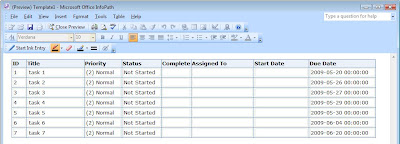
The following demonstrates how to use InfoPath data connections to connect to and retrieve SharePoint list contents (item metadata) for use in the form. This can be useful when InfoPath forms are used as a workflow component or interface, or if the form is being submitted to a library on a SharePoint site. The example creates a secondary data connection that connects to a standard SharePoint task list. Some sample items have been added to the task list. Article Specifications/Requirements SharePoint (MOSS 2007) OOB Task List Written for InfoPath 2007, but can also be applied to InfoPath 2003 Process Create the blank form and set up the data connection: From Microsoft InfoPath, design a new blank form template. From the "Tools" menu, select "Data Connections". Click the "Add"button to add a new data connection to the form which will be a secondary data connection (not the main submit) Select "Create new connection to", and "Receive Data...

WebmasterHub.net - Webmasters Developmers and Designers

Image
WebmasterHub.net is live!! WebmasterHub.net offers a directory of resources, tools and tutorials for webmasters, web developers and designers. Register for free to receive free Search Engine Optimisation (SEO) including access to submit a site or resource to the resource directory and the Webmasterhub.net Bulk Pinger to bulk submit your site or blog to many popular sites and directories.