Friday, May 29, 2009

Data View conditional formatting using SharePoint Designer
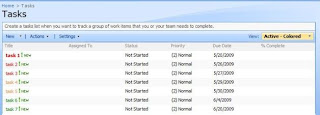
This article demonstrates how to use SharePoint Designer 2007 conditional formatting to format items in a SharePoint (MOSS 2007) list based on item metadata.


The example uses a standard SharePoint task list and formats tasks based on the due date. The end result is a list view sorted by due date with item text or background coloured to represent the number of days until the due date.


The Process


In this example I have started with a standard task list and have created a few sample items for testing / demonstration.


From the task list, create a new view, starting from the default “Active Items” view (filtered to only display incomplete tasks). The view created in the example is called “Active – Coloured”


Open the view using SharePoint Designer. Right click on the List View Web Part and select “Convert to XSL Data View”. This will automatically convert settings for the current view into data view parameters.


Once the Web Part has been converted into a Data View Web Part, click the “Title” field if an item in the list to select it. From the Data View menu, select “Conditional Formatting”. To set the background colour of a row using conditional formatting, select the row instead of the “Title” field.


Formatting Conditions:


1/ Set all tasks with a due date more than a week away to be Green


- Start by setting the field to Due Date, greater than (>) the current date [today]


- Important: click in the grey section to deselect condition once set. If this is not done, changes to the advanced expression may not be applied.

- Click “Advanced” to open the “Advanced Condition” dialog.


- Add -7 before the last parenthesis in the start of the expression. See example below, the change is in bold:


number(translate(substring-before(@DueDate,'T'),'-','')-7) > number(translate(substring-before($Today,'T'),'-',''))


- Press “OK”. --> Condition should read "Using advanced expression"


-Press “OK”. --> Modify Style dialog should appear. Set required styles (font color to green in this case)


You may receive a “Site Definition Page Warning” message after customising the data view, or when saving the page. This has been fine in the past for me as I have not detached the masterpage and the style sheet remains linked to the page, so the page layout and any styles remain. If you are not sure, click the “About SharePoint site definitions” link on the dialog to get more information.


Note: To detect if a site has customised pages, SharePoint Designer provides necessary reporting features. To access the features, select “Reports” from the “Site” menu, then “Customised Pages”. For more detailed instructions, see the following article;

SharePoint Designer (2007) - Run reports for all sites programmatically. The article also demonstrates a method of performing reporting using SharePoint Designer for all sites in a site collection.

2/ Set all tasks with a due date less than a week, but more than 3 days away to yellow

- repeat (create new condition for the title field or row background) with less than or equal to -7 as condition. Advanced expression below:


number(translate(substring-before(@DueDate,'T'),'-','')-7) <= number(translate(substring-before($Today,'T'),'-',''))


3/ Set all tasks with a due date less than a week, but more than 3 days away to orange


Repeat with less than or equal to -3 as the condition. Advanced expression below:


number(translate(substring-before(@DueDate,'T'),'-','')-3) <= number(translate(substring-before($Today,'T'),'-',''))


4/ Set all tasks due today (1 day) to red

- Repeat with less than or equal to -1 as condition (include the -1). Advanced expression below:


number(translate(substring-before(@DueDate,'T'),'-','')-1) <= number(translate(substring-before($Today,'T'),'-',''))


5/ Set overdue tasks text to bold (already red from the previous condition)


- No advanced expression is required for this condition. Using the “Condition Criteria” dialog, simply set the field to the due date and the condition to less than the current date ( @DueDate < [Today] ).

The title for each task in the list should now be coloured dynamically based on the due date. The same method can be used to format items based on priority or most other columns.


Monday, May 4, 2009

SharePoint Designer (2007) - Run reports for all sites programmatically

Ever needed to generate reports using SharePoint designer for all sites in a site collection? The following code takes a pre-pared list of sites from your site collection and programmatically runs the specified report on each.


The example used below automatically creates a ‘Customized Pages” report for every site, which is saved into a document library in the site collection. This is achieved by using Visual Basic (VB) code inside a SharePoint Designer module (Macro), to load each site and save the required reports.


The following is a full list of reports supported by SharePoint Designer. To run a different report, change the highlighted text to the type required for the report. If you require multiple types reports to be run, add a new line to save the report for each required type. To avoid report types for a single site or sub-site overwriting each other is saving multiple, I would suggest adding the name of the report type to the beginning of the filename. For more information, or specific details regarding the various reports available in SharePoint Designer 2007, please see Microsoft’s Use reports to measure site performance and usage page.


Report Types:


WebViewAllFiles

WebViewAspNetMasterPages

WebViewAssignedTo

WebViewBrokenLinks

WebViewBrokenLinks

WebViewBrowserTypes

WebViewCategories

WebViewCheckoutStatus

WebViewComponentErrors

WebViewCSSLinks

WebViewDailyPageHits

WebViewDailySummary

WebViewFolders

WebViewGhostedPages

WebViewLinks

WebViewMasterPages

WebViewMonthlyPageHits

WebViewMonthlySummary

WebViewNavigation

WebViewOlderFiles

WebViewOsTypes

WebViewPage

WebViewPublishStatus

WebViewRecentlyAddedFiles

WebViewRecentlyChangedFiles

WebViewReferringDomains

WebViewReferringURLs

WebViewRemoteSite

WebViewReviewStatus

WebViewSearchStrings

WebViewSharedBorders

WebViewSiteSummary

WebViewSlowPages

WebViewThemes

WebViewUnlinkedFiles

WebViewUsageSummary

WebViewVisitingUsers

WebViewWeeklyPageHits

WebViewWeeklySummary


Usage:


1: Generate a list of all sites in a site collection


  • Start at the root/top level site of your site collection

  • Go to Site Settings – Site Actions (menu) à Site Settings à Modify all site settings

  • Under the Site Collection Administration – Select “Site Hierarchy” ( http://siteURL/_layouts/vsubwebs.aspx )


  • Copy the list of urls for each subsite

  • Paste into Excel (or similar)

  • Remove unwanted columns (only one column containing site URLs should remain)

  • Copy and paste / Save as a text document (each URL on a new line)


Note: To view a list of all sites, you must be logged in as a Site Collection Administrator.


2: Set up and run the SharePoint Designer macro


  • Copy the following code into a SharePoint Designer module (Macro)

  • Update the “filePath” variable to point to your sites list text file

  • Update the “saveLocation” variable to point to the directory to save the report


VB:

Sub CustomizedPagesReport()


'set the path to the sites list text file - (See above for instructions on creating list of all sites in a site collection)


filePath = "D:\Sites_List.txt"
saveLocation = "http://siteCollection/Documents/"

Dim sitesList() As String
intCount = 0

'Open the Sites List text file if file exists
Set filesys = CreateObject("Scripting.FileSystemObject")

If (filesys.FileExists(filePath)) Then

'Get Site names from file
Set siteListFile = filesys.OpenTextFile(filePath)

'Loop through Sites List text file
Do While Not siteListFile.AtEndOfStream

'Declare the multi-dimensional array to prepare for a new element (previous elements are preserved)
ReDim Preserve sitesList(intCount)

'Add the current url to the Sites List Array
sitesList(intCount) = siteListFile.ReadLine

'Increment
intCount = intCount + 1

Loop

End If

'Loop through each site url in the Sites List array
For Each Url In sitesList

'Open the current site
Application.Webs.Open Url, , , WebOpenNoWindow

'Save the required report(s) for the current site - Currently creating "Customized Pages" reports for each site
Application.ActiveWebWindow.SaveReport WebViewGhostedPages, saveLocation & "CustomPages--" & Replace(Mid(Url, 8), "/", "-")
& ".htm", True


'Close the current Site
Application.ActiveWeb.Close

Next

End Sub